
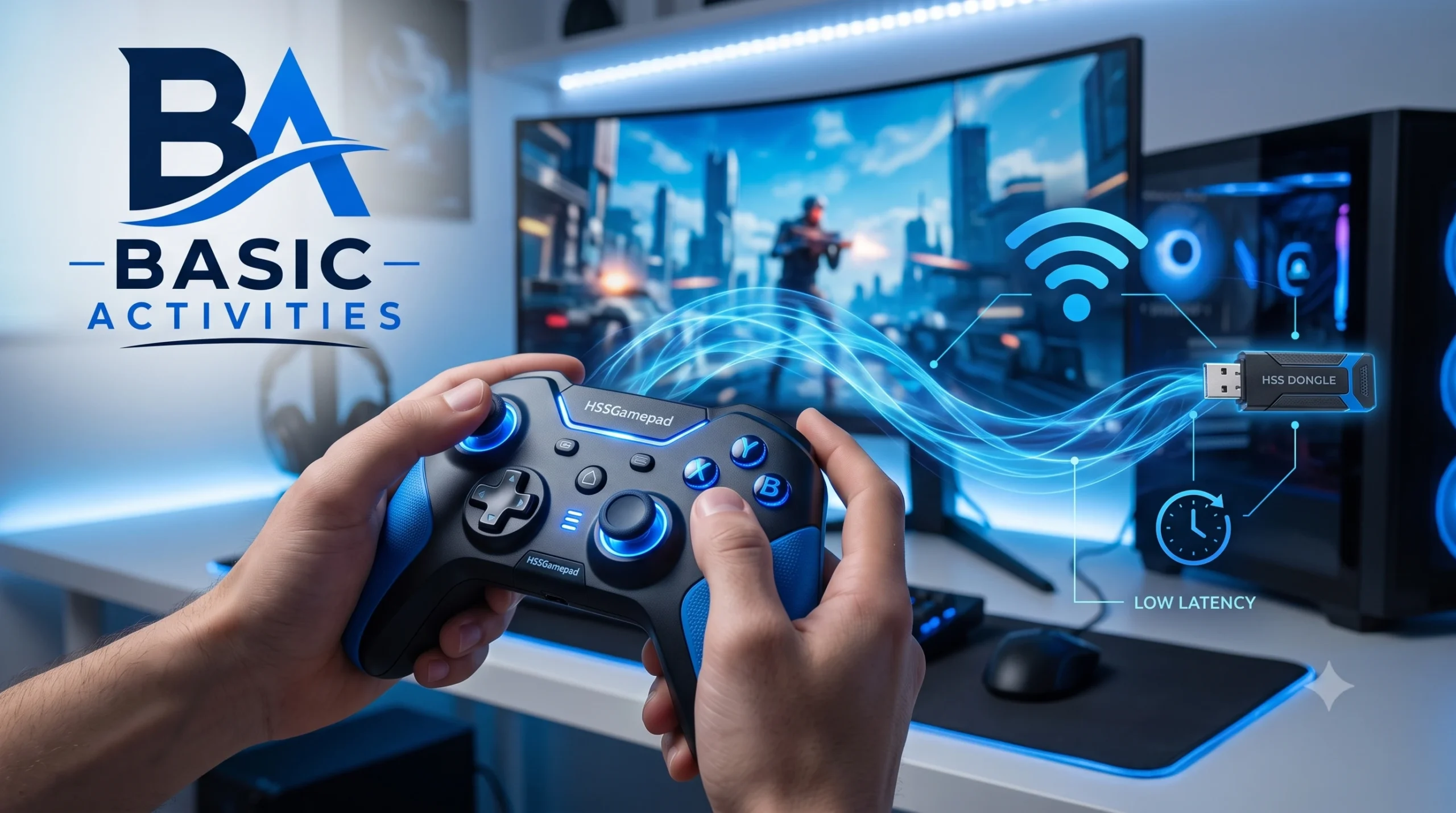
In modern gaming, controller reliability often dictates the boundary between victory and defeat. Whether you are navigating intricate platformers, competing in high-stakes online shooters, or exploring vast open-world RPGs, seamless communication between your input device and gaming host is paramount. The Connectivity HSSGamepad has emerged as a versatile choice for modern gamers seeking multi-device compatibility, low input latency, and flexible connection protocols. However, fully harnessing its capabilities requires understanding how its internal connectivity modes operate across distinct operating systems and hardware platforms.
This comprehensive operational guide breaks down every aspect of Connectivity HSSGamepad configuration. From initial unboxing and protocol selection to advanced latency reduction strategies and platform-specific mapping, this manual provides clear, actionable instructions designed to optimize your wireless and wired gaming experience.
Understanding Connectivity HSSGamepad Modes: Wired vs. Wireless
The primary strength of the Connectivity HSSGamepad lies in its multi-mode operation capabilities. Modern hardware architecture allows this controller to communicate through three distinct standard connection channels: standard 2.4GHz wireless dongle transmission, Bluetooth low latency protocols, and direct wired USB-C Passthrough. Understanding which connection channel to select for your specific gaming setup is crucial for achieving the ideal balance between raw input speed and desktop convenience.
1. 2.4GHz Wireless RF Connection
The 2.4GHz wireless connection relies on a dedicated USB receiver dongle paired directly to the internal transmitter of the controller. This mode bypasses generic host system driver layers, establishing a dedicated radio-frequency link that yields near-zero latency (typically between 3ms and 6ms). It is the ideal choice for competitive PC gaming, TV dock console play, and systems where consistent polling rates are necessary.
2. Bluetooth (5.0 / Low Energy) Connectivity
Bluetooth mode offers wide-range accessibility across mobile hardware, laptops, and handheld consoles without taking up a physical USB port. While Bluetooth adds a minimal amount of processing overhead compared to a dedicated 2.4GHz receiver, modern Bluetooth 5.0 integration in the Connectivity HSSGamepad keeps response times snappy while minimizing battery draw during mobile play sessions.
3. Wired USB-C Connection
Direct wired connectivity remains the benchmark for absolute stability and zero signal interference. Plugging the Connectivity HSSGamepad into a host device using a high-grade data-capable USB-C cable supplies direct input transmission while charging the internal lithium-ion battery. This mode is ideal for tournament environments, low-battery scenarios, or systems with severe wireless spectrum congestion.
Step-by-Step Guide to Pairing Connectivity HSSGamepad via Bluetooth
Establishing a initial Bluetooth pairing link with your Connectivity HSSGamepad requires triggering the internal receiver into broad-spectrum search mode. Because the controller emulates different input profiles—such as X-Input, DirectInput, or Switch Pro Controller modes—entering the correct key combination during startup ensures your host system recognizes the gamepad accurately.
To pair the gamepad using standard Bluetooth mode, follow this universal hardware sequence:
- Power Off the Controller: Ensure all indicator LEDs on the central faceplate are completely unlit. If the controller is connected to a cable, disconnect it.
- Initiate Pairing Mode: Press and hold the Home / Sync button alongside the designated mode button (usually labeled X, Y, or B, depending on your desired host protocol) for approximately three to five seconds.
- Confirm LED Status: The LED indicators on the front panel will transition from a slow pulse to a rapid sweeping pattern. This indicates that the internal Bluetooth transmitter is actively broadcasting its discovery signal.
- Scan on Host Device: Open the Bluetooth configuration panel on your phone, tablet, or PC, select Add Device, and wait for “Connectivity HSSGamepad” or “Wireless Controller” to appear in the available devices roster.
- Establish Connection: Select the controller from the list. Upon successful handshake, the controller will vibrate briefly, and the primary status LED will change from rapid flashing to a solid, continuous glow.
Connecting Connectivity HSSGamepad to PC and Windows Ecosystems
Windows PCs remain the most versatile platform for the Connectivity HSSGamepad, supporting native X-Input protocols as well as legacy DirectInput configurations. Using X-Input mode ensures that modern titles available through platforms such as Steam, the Xbox App, and the Epic Games Store automatically map your thumbsticks, face buttons, and analog triggers without requiring manual third-party configuration mapping software.
| Connection Protocol | Driver Profile | Latency Range | Recommended Usage |
| 2.4GHz Dongle | Native X-Input | ~4ms – 6ms | Competitive PC & Action Games |
| Wired USB-C | Direct Passthrough | ~1ms – 2ms | Tournaments & Battery-Free Play |
| Bluetooth PC | DirectInput / D-Input | ~8ms – 12ms | Casual Gaming & Laptops |
When connecting via the included 2.4GHz USB receiver on a Windows system:
- Insert the wireless USB receiver into an active USB 2.0 or USB 3.0 port located directly on your computer’s motherboard backplate or front chassis panel.
- Turn on the Connectivity HSSGamepad by pressing the Home key once. The controller will automatically search for and latch onto the specific frequency band of the inserted dongle within two seconds.
- Open the Windows Game Controllers utility (type
joy.cplin the Run command window) to verify that all analog axes, force-feedback rumble motors, and button inputs register correctly across their full motion ranges.
How to Sync Connectivity HSSGamepad with Nintendo Switch
The Connectivity HSSGamepad offers native support for the Nintendo Switch console family, including the standard dock, Switch OLED, and handheld Switch Lite systems. In Switch mode, the gamepad enables integrated 6-axis gyroscopic motion controls for precision aiming in compatible action and shooter games.
To establish a stable connection with your Nintendo Switch:
- Navigate to Controller Settings: Turn on your Nintendo Switch and go to the main home dashboard. Select the Controllers icon located along the bottom navigation strip, then click on Change Grip/Order.
- Boot in Switch Mode: Hold down the Sync button (or Home + Y) on your Connectivity HSSGamepad. The player indicator LEDs on the bottom grip edge will start cycling sequentially from left to right.
- Complete System Handshake: Hold the controller within three feet of the console or dock. Within a few seconds, the console will detect the device, assign it an active player position (indicated by a solid LED on channel 1), and vibrate to confirm the link.
- Enable Wired Pro Controller Communication: If you prefer using a direct USB cable with your docked Switch, go to System Settings > Controllers and Sensors and ensure Pro Controller Wired Communication is explicitly toggled ON.
Mobile Gaming Integration: Android and iOS Setup
Mobile gaming platforms have expanded dramatically, offering desktop-quality titles, cloud streaming platforms, and complex emulators. The Connectivity HSSGamepad interfaces natively with modern Android and iOS devices, registering as a standard wireless game controller to provide immediate controller support across thousands of mobile titles.
Android Configuration
To connect to an Android phone or tablet, place the Connectivity HSSGamepad into Android HID mode by holding Home + A during initial startup. Open your Android device’s Settings > Connected Devices > Bluetooth, locate the gamepad, and tap to pair. Native HID mode ensures instant recognition across popular mobile titles like Call of Duty: Mobile, Minecraft, and various mobile cloud streaming applications.
iOS & iPadOS Configuration
Apple ecosystems enforce strict controller framework protocols. To pair with an iPhone, iPad, or Apple TV running current OS builds, power on the Connectivity HSSGamepad using the Home + B button combination. This starts the gamepad in Wireless Controller emulation mode, which iOS recognizes natively as an Apple-certified accessory. Once connected via the iOS Bluetooth menu, key mappings and analog trigger sensitivity automatically align with system standards.
Optimizing Input Lag and Wireless Interference for HSSGamepad
While the Connectivity HSSGamepad features high-performance wireless transmission hardware, external environmental factors can occasionally degrade wireless signal quality, causing dropped inputs, random disconnections, or noticeable control delay. Maximizing signal integrity requires proper placement and environmental management.
Eliminate Physical and Frequency Blockages
The 2.4GHz spectrum is shared by a wide range of household electronics, including Wi-Fi routers, Bluetooth headsets, smart home hubs, and USB 3.0 port hubs. To preserve continuous throughput for your Connectivity HSSGamepad:
- Clear Line-of-Sight: Position the wireless receiver away from metal enclosures, thick walls, or direct placement behind heavy computer towers.
- Utilize USB Extension Cables: If your desktop PC is located under a desk or far from your seating position, connect the 2.4GHz receiver to an elevated USB extension cable placed directly on your desk surface.
- Isolate USB 3.0 Interference: Unshielded USB 3.0 ports can broadcast radio noise across the 2.4GHz frequency band. Whenever possible, insert your receiver into a USB 2.0 port or use a shielded USB extension cable to distance the dongle from high-speed data drives.
- Maintain Battery Charge: Wireless radio transmitters draw more power as distance increases. Keeping the gamepad’s battery charged above 20% maintains maximum transmission strength and prevents sudden drops in polling frequency.
Advanced Calibration and Firmware Updates for Peak Performance
Even with a strong wireless connection, controller performance depends heavily on accurate internal calibration and up-to-date hardware firmware. Over extended gaming sessions, analog sticks and trigger sensors can suffer from minor center-point drift or reduced motion ranges due to physical wear or environmental temperature shifts.
Recalibrating Thumbsticks and Triggers
If you notice slight drifting in character movement or incomplete trigger responses during gameplay, execute the internal hardware recalibration routine:
- Turn off the Connectivity HSSGamepad completely.
- Hold down Select + Start + Home simultaneously until all four status LEDs flash slowly together, signifying the controller has entered hardware calibration mode.
- Place the gamepad on a flat, level surface and gently rotate both thumbsticks in full 360-degree continuous circles twice, taking care to hit their outer physical stops.
- Fully depress the left (LT) and right (RT) analog triggers to their maximum stop points twice, then release them smoothly.
- Press the Home button once to save these recorded sensor boundaries to the controller’s onboard memory chip and exit calibration mode.
Updating Internal Firmware
Periodic firmware updates provided by the manufacturer refine power management profiles, improve Bluetooth compatibility across updated host operating systems, and lower wireless polling latency. Always ensure your controller is connected via a direct wired USB cable before executing any firmware flashing utilities on your PC to avoid bricking the internal microprocessor during an update cycle.
Common Connectivity HSSGamepad Issues and Quick Fixes
Even with a proper setup, you may occasionally run into connection errors, unexpected power-downs, or unresponsive inputs. Below is a structured diagnostic table outlining the most common Connectivity HSSGamepad connection issues alongside their immediate solutions.
Issue 1: Controller Flashes Continuously but Fails to Connect
- Cause: The gamepad is searching for a previously paired device that is offline or broadcasting on a different protocol channel.
- Solution: Reset the controller’s internal memory by inserting a pin into the small hardware reset hole located near the back label for 3 seconds. After clearing the device memory, re-initiate the button pairing sequence for your specific host system.
Issue 2: Incorrect Button Mapping in Games
- Cause: The controller booted in DirectInput (D-Input) mode rather than standard X-Input mode on Windows.
- Solution: Hold the Home button down for 5 seconds while connected to your PC. The status LEDs will switch pattern configurations, signaling that the controller has successfully toggled from DirectInput over to native X-Input mode.
Issue 3: Micro-Stuttering or Input Lag During Wireless Play
- Cause: Interference from nearby 2.4GHz Wi-Fi networks or degraded power delivery from a low battery.
- Solution: Connect the included USB charging cable directly to your PC or console dock. If performance immediately restores to normal under a wired signal, relocate your wireless dongle to an elevated, unobscured position using a dedicated extension cable and recharge the internal battery fully.
Frequently Asked Questions (FAQs) About Connectivity HSSGamepad
Q1: How do I know which mode my Connectivity HSSGamepad is currently using?
The primary LED indicators on the faceplate signify the active connection mode. In X-Input mode (PC), LEDs 1 and 2 illuminate continuously. In Switch mode, a single LED lights up corresponding to your player assignment (Player 1, 2, etc.). In Android/Mobile HID mode, LED 3 or a dedicated Bluetooth icon typically stays illuminated.
Q2: Can I use the Connectivity HSSGamepad while it is charging?
Yes. Plugging the controller into a powered USB port via a data-capable cable allows you to play continuously while the internal battery recharges. The controller will automatically switch to wired data passthrough mode if connected to a host device.
Q3: Why does my gamepad turn off automatically during short breaks?
The Connectivity HSSGamepad features an automated power-saving sleep timer designed to preserve battery health. If no inputs are registered for 5 consecutive minutes, the device enters sleep mode. Simply press the Home button once to wake the controller and automatically re-establish your connection within two seconds.
Q4: Does the Connectivity HSSGamepad support rumble feedback on all devices?
Dual-vibration rumble is fully supported across PC (X-Input), Nintendo Switch, and select console streaming apps. However, standard iOS and native Android mobile games often restrict rumble feedback due to mobile operating system API limitations.
Q5: How do I switch between paired Bluetooth devices without re-pairing every time?
If you frequently jump between multiple platforms (such as your phone and PC), use the specific mode shortcuts (Home + X, Home + Y, or Home + A) when powering on the device. The gamepad maintains distinct pairing profiles for each mode slot, allowing it to reconnect seamlessly to the host device assigned to that specific channel.
Conclusion
Mastering the Connectivity HSSGamepad comes down to choosing the right connection mode for your setup, keeping your environment free of signal interference, and maintaining updated hardware calibration. Whether you are aiming for raw wired speed during competitive PC gaming or enjoying portable Bluetooth convenience on a mobile device or Nintendo Switch, this flexible controller provides the precision and responsiveness modern gaming demands. By following the platform-specific pairing steps, calibration procedures, and signal optimization techniques in this guide, you can enjoy low-latency, uninterrupted performance across all your gaming gear.